Install the app
Add the portal to your phone's home screen or your computer's dock. It opens full screen in one tap, like any other app, with nothing to download from an app store. Your programmes and account are the same as on the website.
iPhone and iPad
Safari
- Open the portal in Safari.
- Tap ••• at the bottom right, then Share. On older iOS, tap Share straight away: the square with an arrow pointing up, at the bottom of the screen (at the top on an iPad).
- Tap View More if the list is short, then tap Add to Home Screen.
- Keep or change the name, then tap Add.
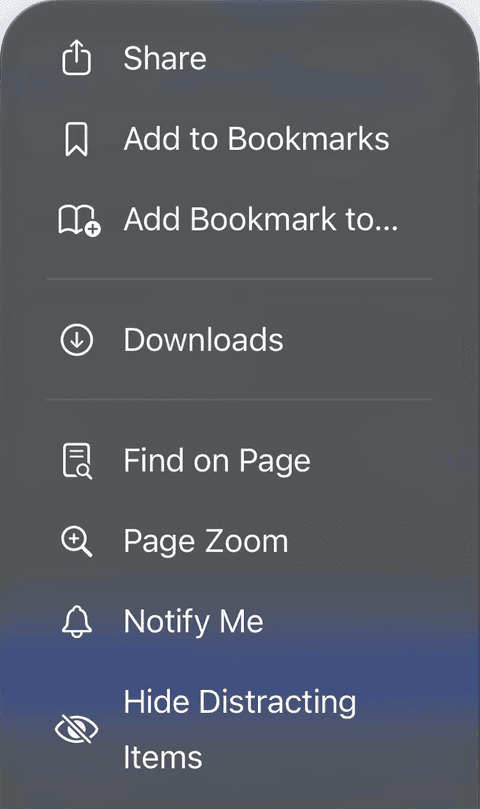
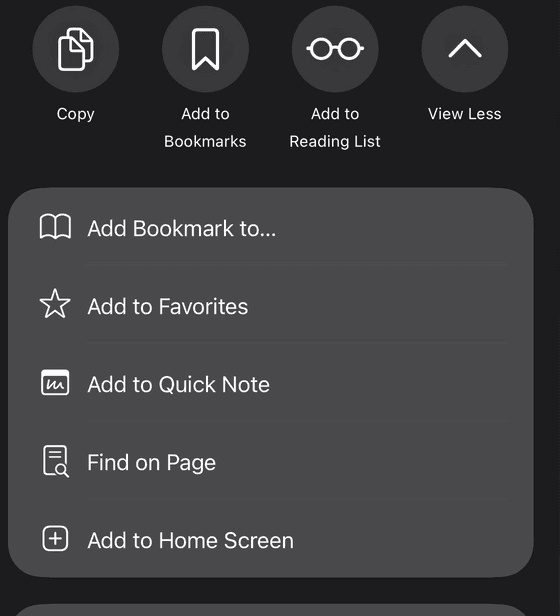
On iOS 16.4 or later, Chrome and Edge can do the same from their own Share button. If you do not see Add to Home Screen, open the page in Safari.
Android phones
Chrome
- Open the portal in Chrome.
- Tap Install app on the banner at the top of the portal, if it shows.
- Or tap the menu ⋮ at the top right, then Install app (on some phones Add to Home screen).
- Tap Install to confirm. The app appears on your home screen and in your app list.
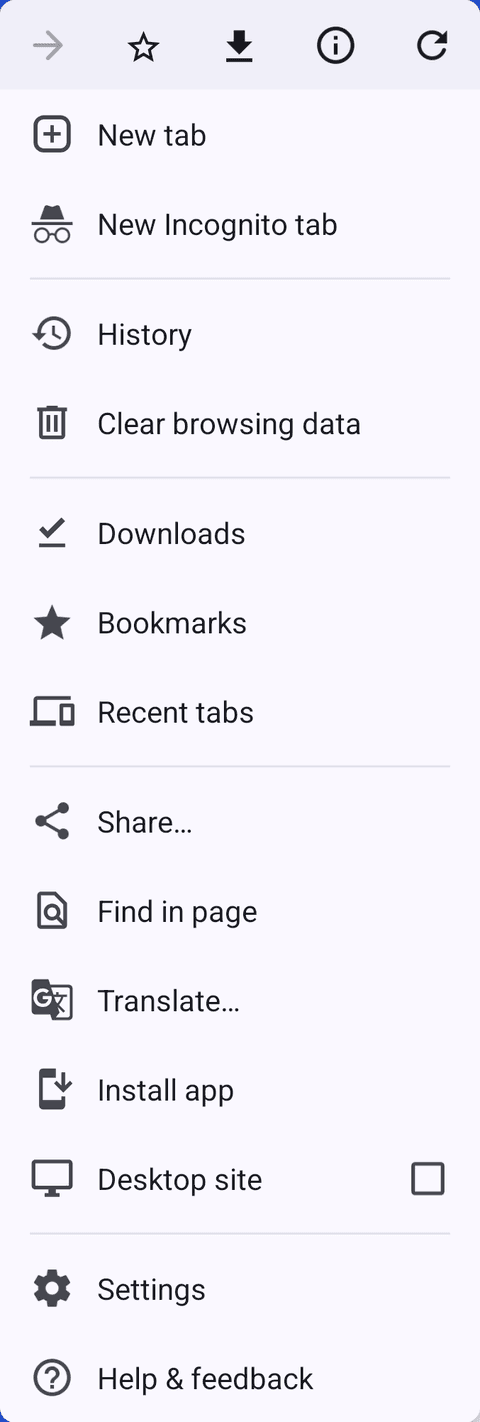
Samsung phones
Samsung Internet
- Open the portal in Samsung Internet.
- Tap the install icon in the address bar, if it shows, then Install.
- Or tap the menu ≡ at the bottom right, then Add page to, then Home screen.
Computers
Chrome or Edge on Windows, Mac or ChromeOS
- Open the portal in Chrome or Edge.
- Click the install icon at the right of the address bar, or Install app on the portal's banner.
- Or open the browser's menu: in Chrome Cast, save and share, then Install page as app; in Edge Apps, then Install this site as an app.
- Click Install. The portal opens in its own window and can be pinned to the taskbar or dock.
On a Mac, Safari 17 or later can do the same: File, then Add to Dock.
Problems
When there is no install option.
I opened the link from WhatsApp, Instagram, Facebook or another app
Those apps open links in their own built-in browser, which cannot install anything. Use their menu (⋮ or …) and choose Open in browser (or Open in Safari / Open in Chrome), then follow the steps above.
I use Chrome, Firefox or another browser on my iPhone
On iOS 16.4 or later, look for Add to Home Screen under the browser's Share button. If it is not there, copy the link, open it in Safari, and follow the iPhone steps.
I cannot see an install option on Android or a computer
Private and incognito windows cannot install apps: open a normal window. Make sure the browser is up to date. If the portal is already installed, the browser offers to open it instead: look for it in your app list.
I am asked to sign in again in the installed app
On iPhone and iPad the home-screen app keeps its own sign-in, apart from Safari's. Sign in once in the app. Programmes saved to your account show in both; programmes kept as a guest in Safari stay in Safari.
How do I remove it?
On a phone, press and hold the icon, then choose Remove App (iPhone) or Uninstall (Android). On a computer, open the app's menu and choose Uninstall.